Rotating a portrait screen after the Omarchy Quattro update
I updated this Beelink to Omarchy Quattro. The update itself was fine — themes, bar, the new Display panel — but my Samsung vertical monitor came back in landscape. Typing a line grew from top to bottom down the physical screen. Same desk as in the multi-monitor post: BenQ horizontal, Samsung on its side.
I asked Grok 4.6 (high) to fix the screen config, then to put a rotation control in the new Display panel so I would not have to edit Hyprland files by hand the next time this happens. Below is what it did. Credit where it's due.
The update moved monitor config to Lua
Before Quattro I had this in ~/.config/hypr/monitors.conf, which is what I wrote up last October:
monitor=HDMI-A-2,preferred,auto-left,1.5
monitor=HDMI-A-1,preferred,auto-right,1.5, transform, 1
transform, 1 is 90° clockwise. That was the Samsung. After the update, Hyprland 0.56 is Lua-first. The live file is ~/.config/hypr/monitors.lua, and the old .conf is ignored. hyprctl monitors showed the Samsung on HDMI-A-2 with transform: 0.
Quattro's default monitors.lua looks like this:
local omarchy_gdk_scale = 2
local omarchy_monitor_scale = "auto"

hl.env("GDK_SCALE", tostring(omarchy_gdk_scale))
hl.monitor({ output = "", mode = "preferred", position = "auto", scale = omarchy_monitor_scale })
No rotation. Grok added a specific rule for the Samsung (and the other HDMI port, in case I plug it there again):
hl.monitor({ output = "HDMI-A-2", mode = "preferred", position = "auto-left", scale = omarchy_monitor_scale, transform = 1 })
hl.monitor({ output = "HDMI-A-1", mode = "preferred", position = "auto-right", scale = omarchy_monitor_scale, transform = 1 })
hyprctl reload, then hyprctl monitors reported transform: 1. The desktop was portrait again. That was the immediate fix.
Then I wanted it in the Display panel
Quattro ships a Display plugin on the bar — brightness, text size, scale, enable/disable extra monitors. No rotation. Super+Ctrl+D opens it.
Grok found it as first-party plugin omarchy.monitor:
/usr/share/omarchy/shell/plugins/panels/monitor/
  manifest.json
  Model.js
  Panel.qml
Editing that tree is a bad idea. The next omarchy update overwrites it. The supported way to change a built-in panel is to clone it into your own config:
omarchy plugin clone omarchy.monitor
That copied it to ~/.config/omarchy/plugins/ew.monitor/, disabled the stock widget, and put ew.monitor on the bar. Existing IPC still answers as omarchy.monitor, so Super+Ctrl+D keeps working.
Adding a Rotation row
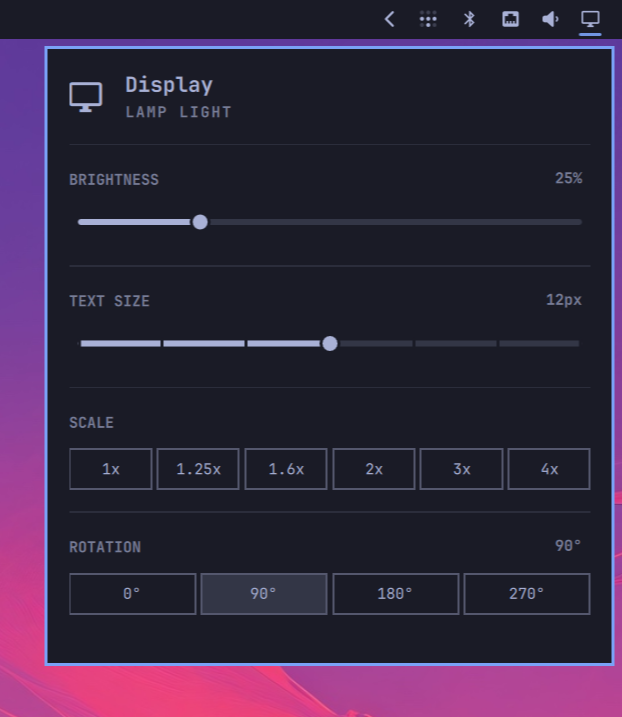
The clone got a ROTATION section under Scale, four pills: 0° / 90° / 180° / 270°. Click one (or j/k to the row, h/l to pick, Enter to apply).
Two small scripts live next to the QML:
state.sh— wrapsomarchy-monitor-stateand adds each display's Hyprlandtransformso the panel knows which pill is activerotate.sh— sets the focused monitor immediately viahyprctl eval, then writestransform = Ninto~/.config/hypr/monitors.luaso it survives a reload
The apply call looks like this:
hyprctl eval "hl.monitor({ output = \"HDMI-A-2\", mode = \"preferred\", position = \"-1440x0\", scale = 1.5, transform = 1 })"
I tried it. 90° is highlighted, the other three work, and the file on disk updates. It just works.
Why this survives the next update
User plugins live under ~/.config/omarchy/plugins/. Omarchy does not touch that on update. To go back to stock:
omarchy plugin remove ew.monitor
Open it anytime with Super+Ctrl+D.